01
Open Claude connectors
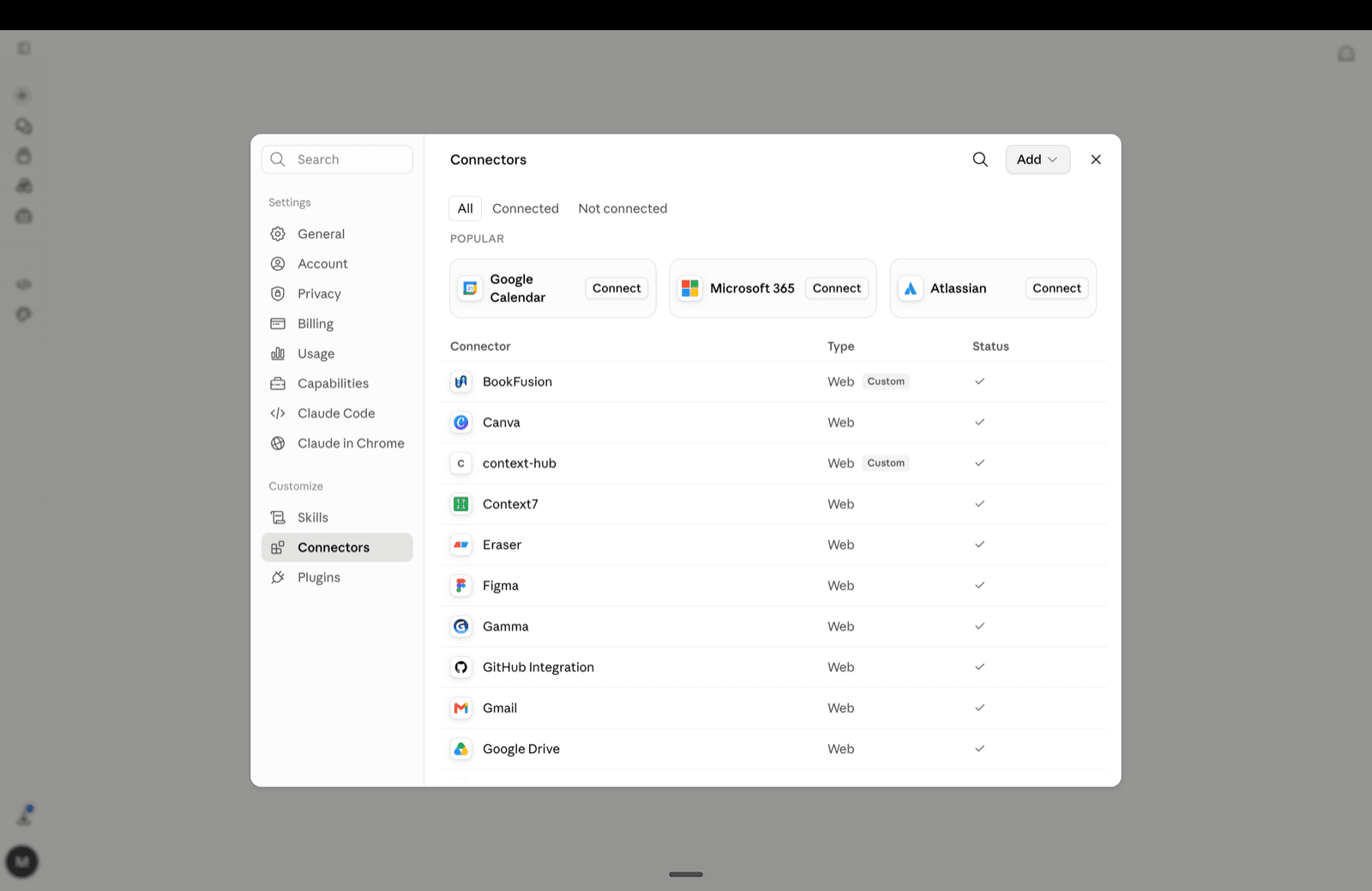
Open Claude Settings, then choose Connectors under Customize. This page lists every connection available to Claude.
Rehearsal MCP
You forward screenshots, record voice notes on walks, save PDFs you mean to reread. Rehearsal keeps all of it. Connect it once over MCP, and ChatGPT or Claude can search that collection mid-conversation — your own material, in the AI you already use.
Memory server address
https://mcp.tryrehearsal.ai/mcpBuilding a CV instead? There is a second server for that. Jump to the CV server.
Quick answer
Rehearsal offers two MCP servers. The memory server (https://mcp.tryrehearsal.ai/mcp) lets ChatGPT and Claude search your saved notes, voice notes, and documents. The CV server (https://rehearsal-cv-mcp.ailabs-c94.workers.dev/mcp) lets them build, tailor, score and save your CV with Rehearsal's own method. Paste an address into ChatGPT's Plugins page or Claude's Connectors page, sign in with OAuth, and it works. Setup takes about three minutes per server.
The plumbing
An MCP server is a small bridge that lets an AI assistant reach information that lives outside it. MCP stands for Model Context Protocol — an open standard introduced by Anthropic in 2024 and now supported by ChatGPT, Claude, and most major AI tools. Instead of you copying and pasting material into every chat, the AI asks the server for what it needs, when it needs it.
The Rehearsal MCP server is that bridge for your Rehearsal account. Ask Claude about pricing strategy and it can quietly check what you saved about pricing — the article you forwarded in March, the voice note from the drive home — and answer from your own collection. If you want the same idea for context beyond Rehearsal, we also maintain Context Hub, an open-source MCP memory server.
After you connect
Exam season
Months of collecting for one exam — screenshots, PDF chapters, current-affairs clippings, a topper's notes someone forwarded. It is all sitting in Rehearsal.
“Use Rehearsal to pull everything I saved about inflation, and show me what I keep highlighting.”
Voice notes
You think out loud — on walks, in the car, after a podcast. Every recording lands in Rehearsal, transcribed and searchable.
“Search my Rehearsal voice notes from this month. What ideas do I keep circling back to?”
Saved reading
The PDFs and articles you saved to read properly later. They stopped being a guilt pile the day they became searchable.
“Find the paper I saved about habit formation and connect it to the note I wrote last week.”
New: CV building
The second Rehearsal server is made for one job: your CV. It hands the AI the same prompts, question rounds and scoring the Rehearsal app uses, so the CV you build in a chat follows the Rehearsal method and the exact Rehearsal CV format. Choose how deep to go (instant, quick, recommended or deep dive), run the ATS health check, and every CV you finish is saved to your Rehearsal account, marked complete or incomplete with the reasons.
CV server address
https://rehearsal-cv-mcp.ailabs-c94.workers.dev/mcpTailor a CV
A job description lands in your inbox and the deadline is tonight. The CV server runs Rehearsal's own CV method inside the chat: it reads your resume, asks the questions a placement mentor would ask, then rewrites every bullet with real facts.
“Tailor my Rehearsal resume for this job description in recommended mode, ask me the questions one at a time, then finalize it.”
ATS health check
Before you send it anywhere, get the same 10-point ATS score the Rehearsal app gives: contact details, parseability, quantified impact, action verbs, dates, length, section order, file name, grammar and keyword match.
“Run the Rehearsal ATS health check on this PDF for a Business Analyst role and tell me the three fixes that move the score most.”
Saved to your account
Every CV you finish in the chat is checked against Rehearsal's exact CV format and stored in your Rehearsal account with a complete or incomplete status, so it shows up in the app and counts for your placement office.
“Finalize this resume into my Rehearsal account and tell me whether it is complete or what is still missing.”
Set up
The steps are the same for both servers and both apps. Claude calls these custom connectors and keeps them under Settings → Connectors; ChatGPT adds MCP servers from the Plugins page in Settings. Add the memory server, the CV server, or both, one address at a time.
Open Claude Settings, then choose Connectors under Customize. This page lists every connection available to Claude.
Select Add in the top-right corner, then choose Add custom connector from the menu.
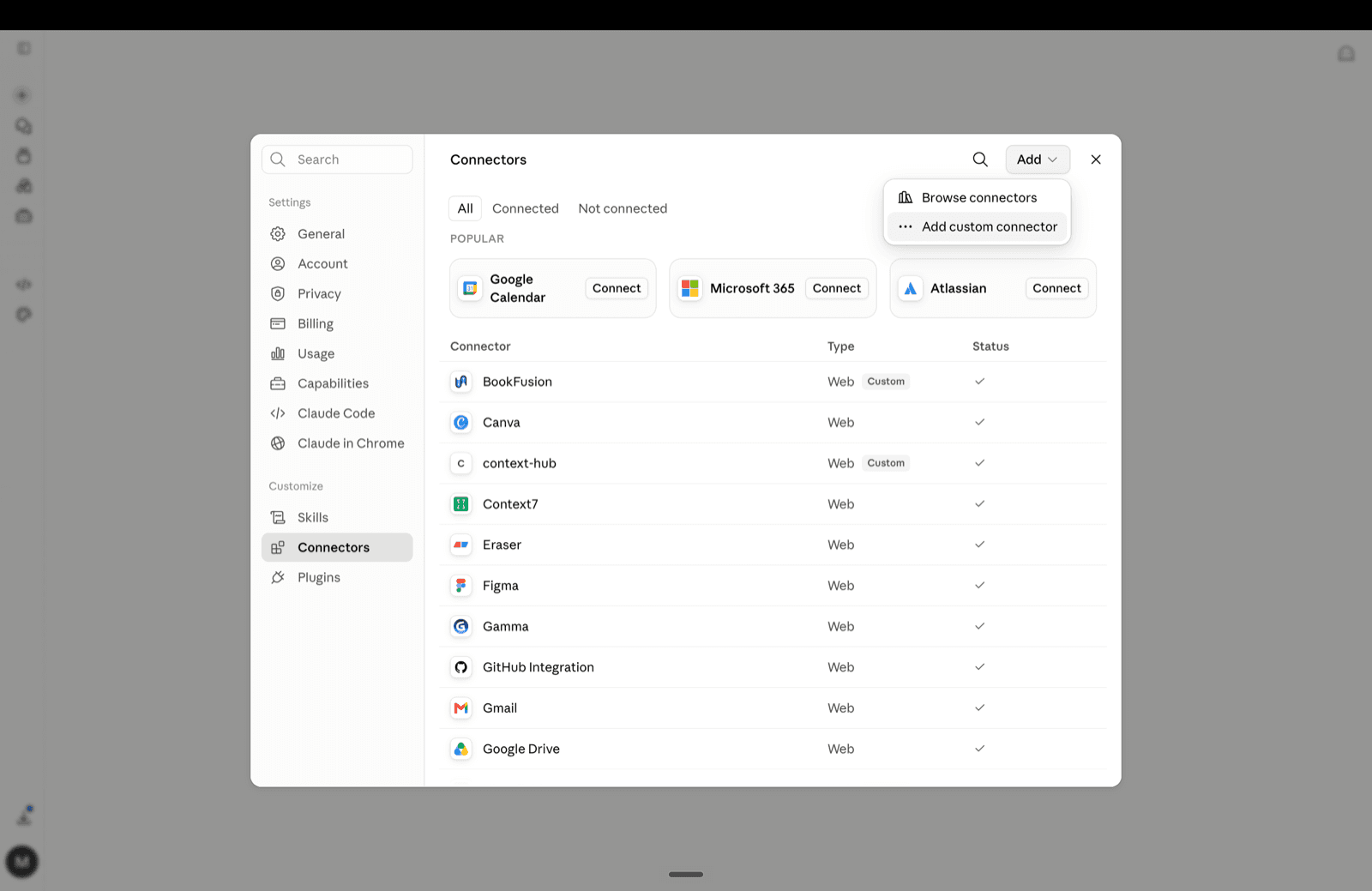
Enter Rehearsal as the name and paste the MCP server address. Leave the optional OAuth client fields blank, then select Add. Claude opens Rehearsal in your browser — sign in, approve access, and start a new chat.
MCP server address
https://mcp.tryrehearsal.ai/mcp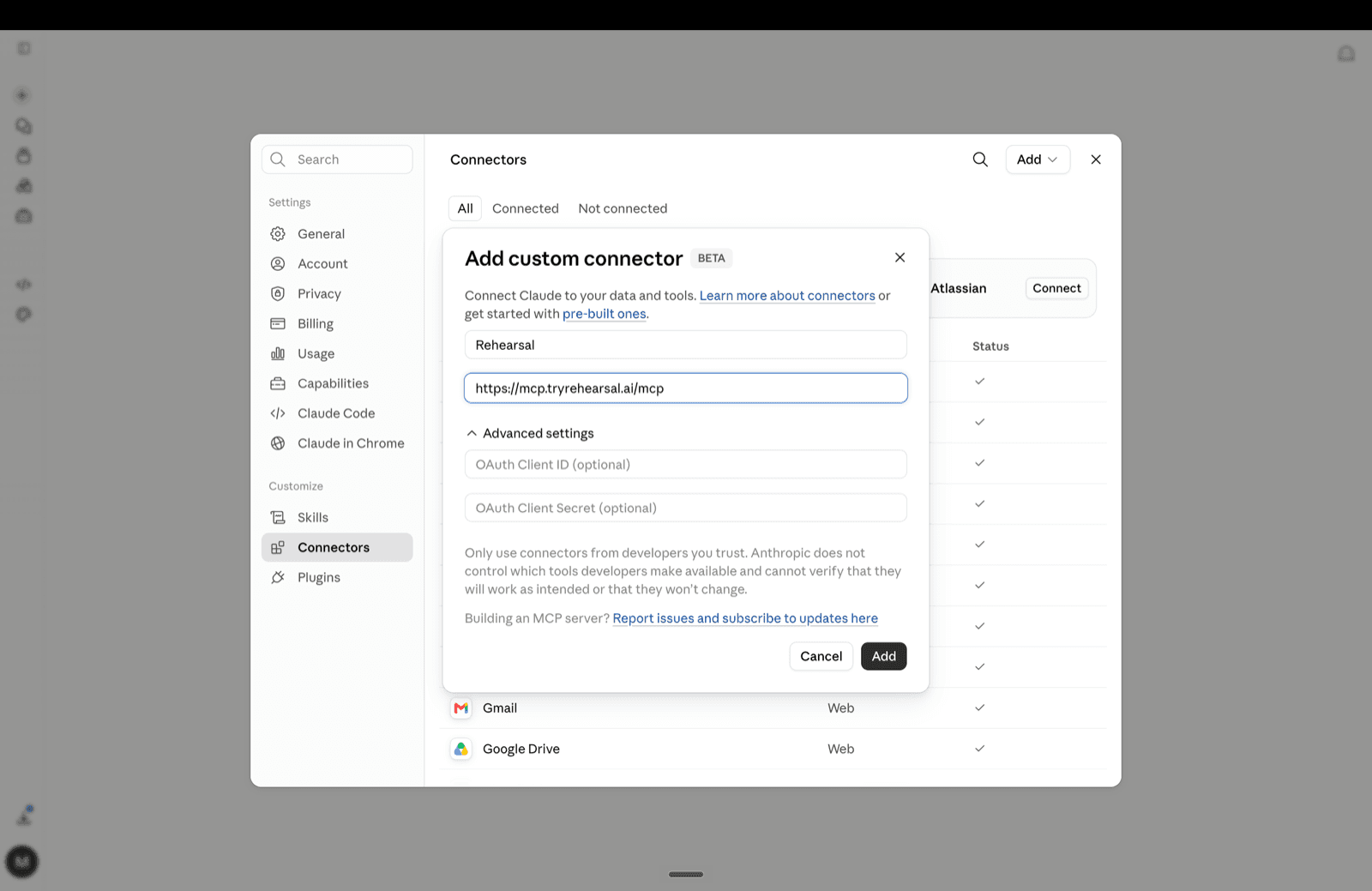
Open your profile menu, choose Settings, then select Plugins from the sidebar.
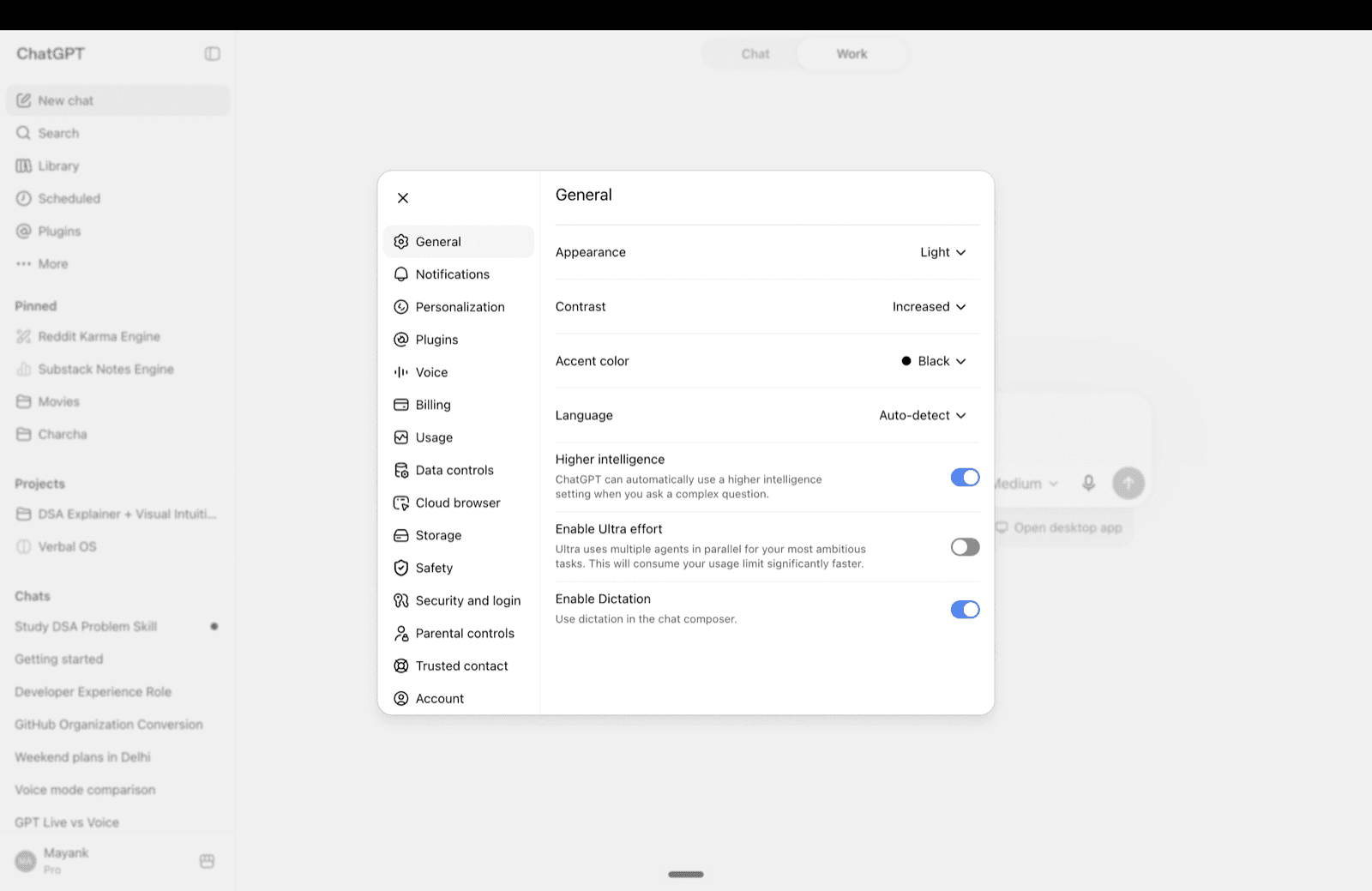
On the Plugins page, select the plus button beside the search field.
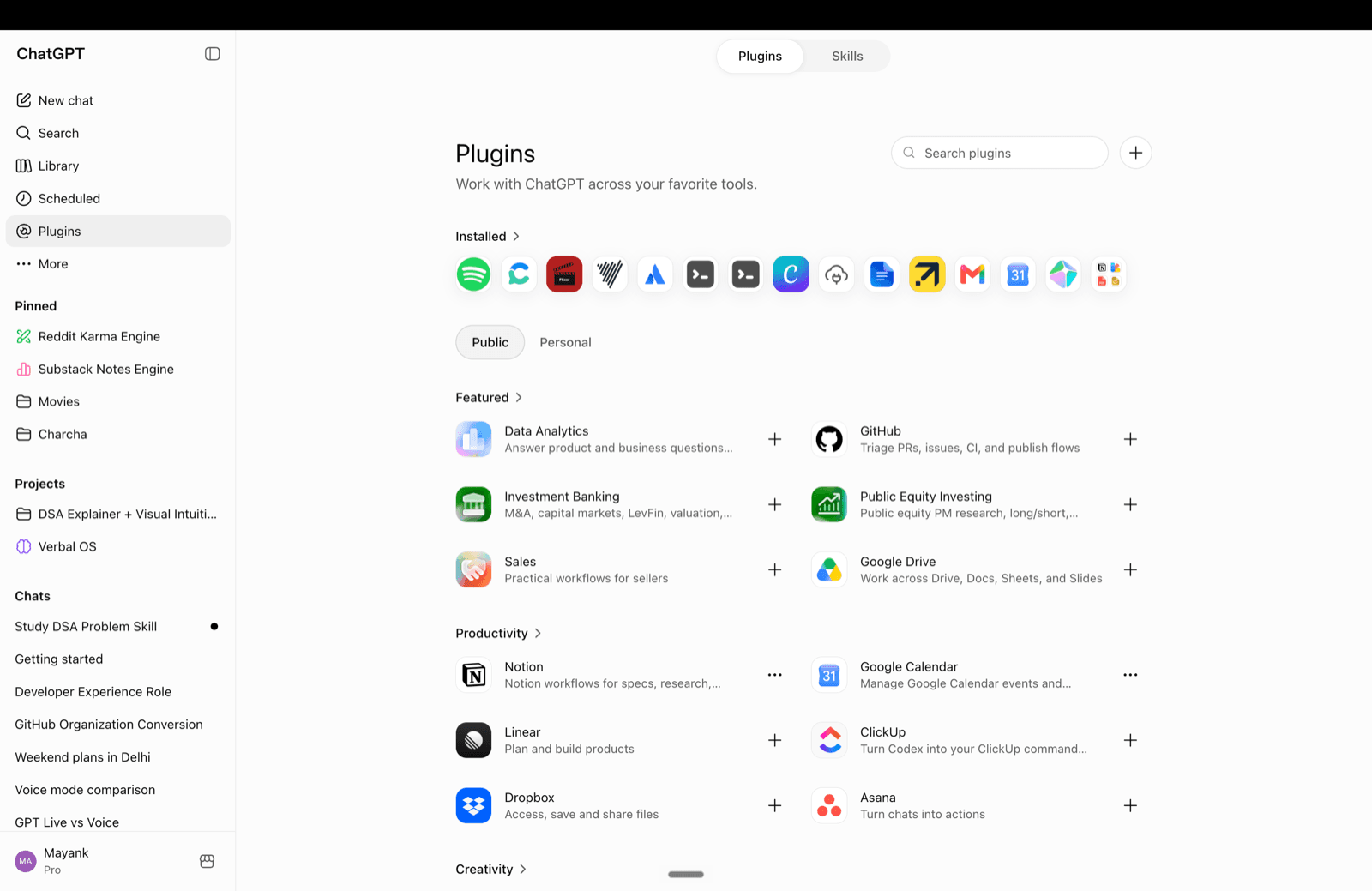
Use Rehearsal as the name, keep Server URL selected, paste the address below, and choose OAuth.
MCP server address
https://mcp.tryrehearsal.ai/mcp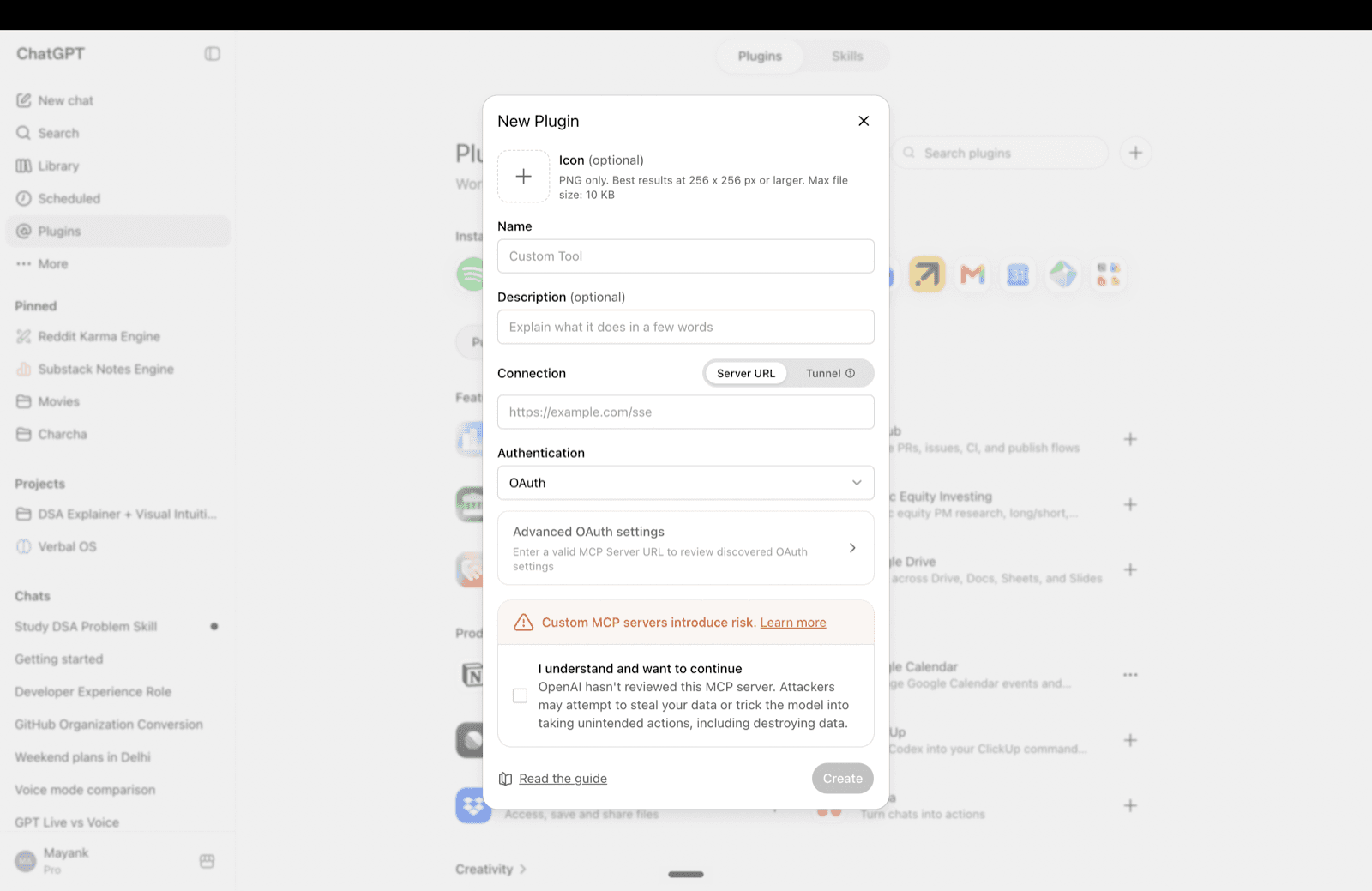
Tick the acknowledgement after reviewing it, then select Create. ChatGPT opens Rehearsal sign-in so you can authorise your account, and the connector appears in your chats.
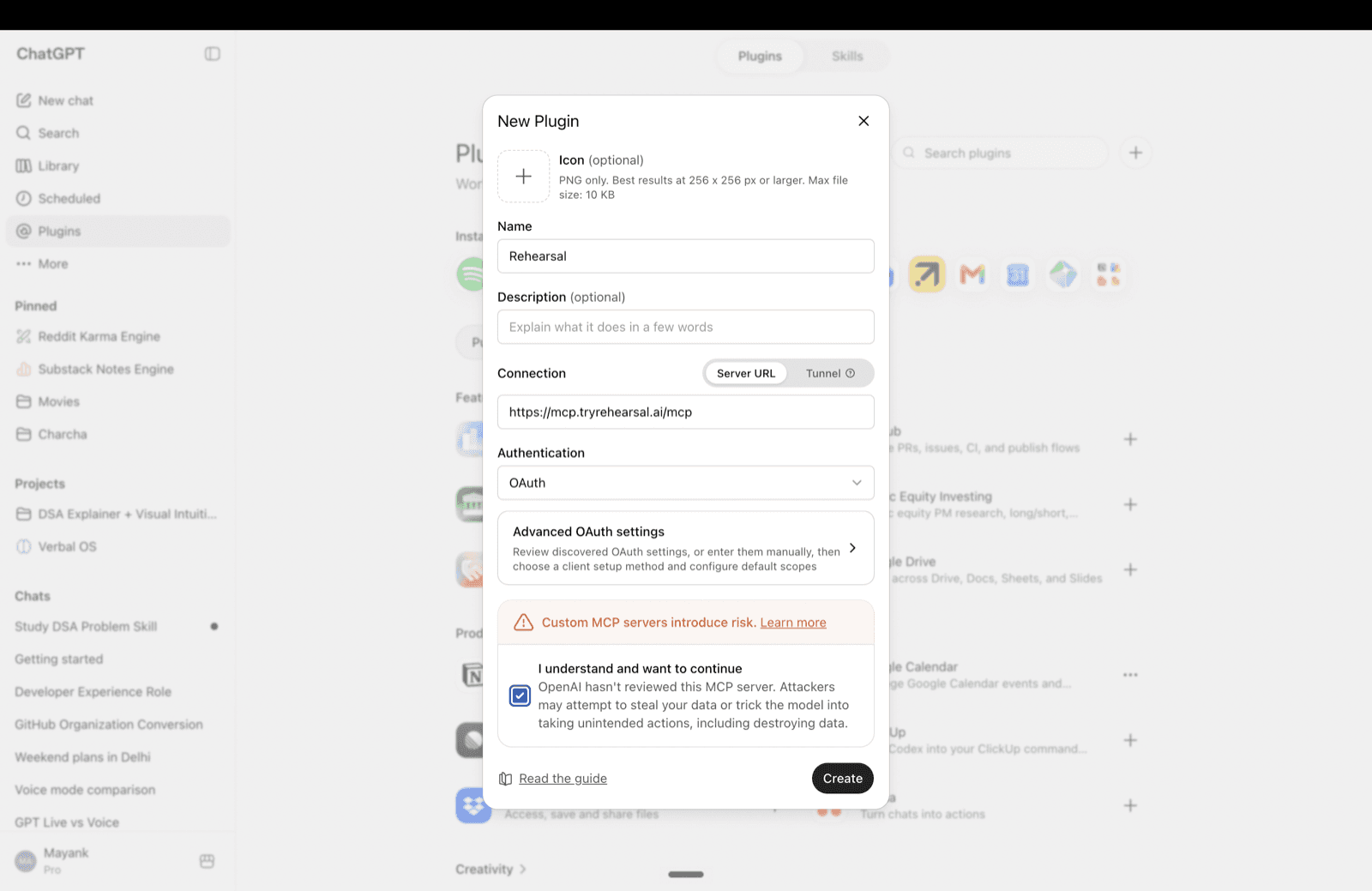
Adding the CV server
Repeat the same steps with the CV address, naming the connection Rehearsal CV. You sign in once with the same Rehearsal account.
CV server address
https://rehearsal-cv-mcp.ailabs-c94.workers.dev/mcpFirst question
Start a new chat and name Rehearsal directly, so the client knows which tool to reach for:
“Use Rehearsal to find what I saved about pricing strategy, then give me the three ideas I return to most.”
Private by design
ChatGPT and Claude open Rehearsal's own sign-in page. You approve access to your account; no keys or passwords are shared with the AI client.
The memory server can only look things up in what you saved; it cannot edit, delete, or add anything. The CV server writes exactly one thing: the CVs you choose to finalize, into your own account.
Remove Rehearsal from ChatGPT's Plugins page or Claude's Connectors page whenever you like, and reconnect later with the same address.
Questions
https://mcp.tryrehearsal.ai/mcp — paste it into ChatGPT's Plugins page or Claude's Connectors page and sign in when the browser window opens. The same address works for both.
A small bridge that lets an AI assistant reach information stored somewhere else. MCP stands for Model Context Protocol, an open standard supported by ChatGPT and Claude. The Rehearsal MCP server lets those apps search what you have saved in Rehearsal, with your permission.
Yes. ChatGPT supports MCP servers through the Plugins page in Settings. Add Rehearsal as a server URL, choose OAuth, and it appears as a tool inside your chats.
Open Claude Settings, choose Connectors, select Add custom connector, name it Rehearsal, and paste the server address. Leave the optional OAuth client fields blank — Claude handles sign-in in the browser.
You sign in with OAuth to your own account, so nothing is shared beyond it. The memory server only searches and reads what you saved. The CV server can also save the CVs you finalize into your own account, and nothing else. You can disconnect from ChatGPT or Claude at any time.
https://rehearsal-cv-mcp.ailabs-c94.workers.dev/mcp is the CV server. Add it the same way as the memory server (Connectors in Claude, Plugins in ChatGPT), sign in once, and the AI can build, tailor, check and save your CV using Rehearsal's own method and format.
The memory server (mcp.tryrehearsal.ai) lets the AI search your notes, voice notes and PDFs; it never writes. The CV server (rehearsal-cv-mcp.ailabs-c94.workers.dev) is for CV building: it supplies Rehearsal's CV prompts and scoring, and saves the finished CV to your Rehearsal account. You can add one or both.
Yes. The CV server checks every finished CV against the same schema the Rehearsal app uses before saving it, so it opens in the app and downloads as Word exactly like a CV made on the website. A CV that is missing essentials is still saved, marked incomplete, with the reasons listed.
Confirm the connection shows as enabled in your client — Plugins in ChatGPT, Connectors in Claude — then start a new chat. On the first request, name it directly: “Use Rehearsal to find my notes about pricing.”
Allow pop-ups for ChatGPT or Claude, retry the authorisation, and check you are signed in to the right Rehearsal account in that browser.
Something only your own collection can answer. “Use Rehearsal to search my voice notes from this month and tell me what I keep coming back to” is a good first question — it proves the connection works and usually shows you something about yourself.
Keep going
Open source
The open-source MCP memory server we maintain — one endpoint that Claude, ChatGPT, Cursor, and Perplexity can all read, so every AI you use shares the same context.
Guide
What a second brain app actually is, and the 7 worth considering in 2026 — including where Rehearsal is not the right pick.
Try it
Start collecting in Rehearsal — the notes, voice notes, and screenshots you save become something every AI you use can help you think with.
Get Started — FreeNo credit card required