Connect the Jaipuria Moodle Assistant
For Jaipuria faculty and staff. Connect once in Rehearsal OS or in Claude, then ask for a student's marks and attendance in plain words. Each guide takes about a minute.
MCP link
Paste this into Claude. Rehearsal OS already has it.
https://rehearsal-os.app/moodle-assistant/mcpUse your Jaipuria Google account
Sign in with your official Jaipuria account. You see only the students your account is allowed to see.
It can read, not change
The assistant reads rosters, marks, attendance and CGPA. It cannot change anything in Moodle.
You connect once
The connection stays after the first sign-in. Next time you only ask.
In Rehearsal OS
The assistant is already listed inside Rehearsal OS, so there is no address to paste.
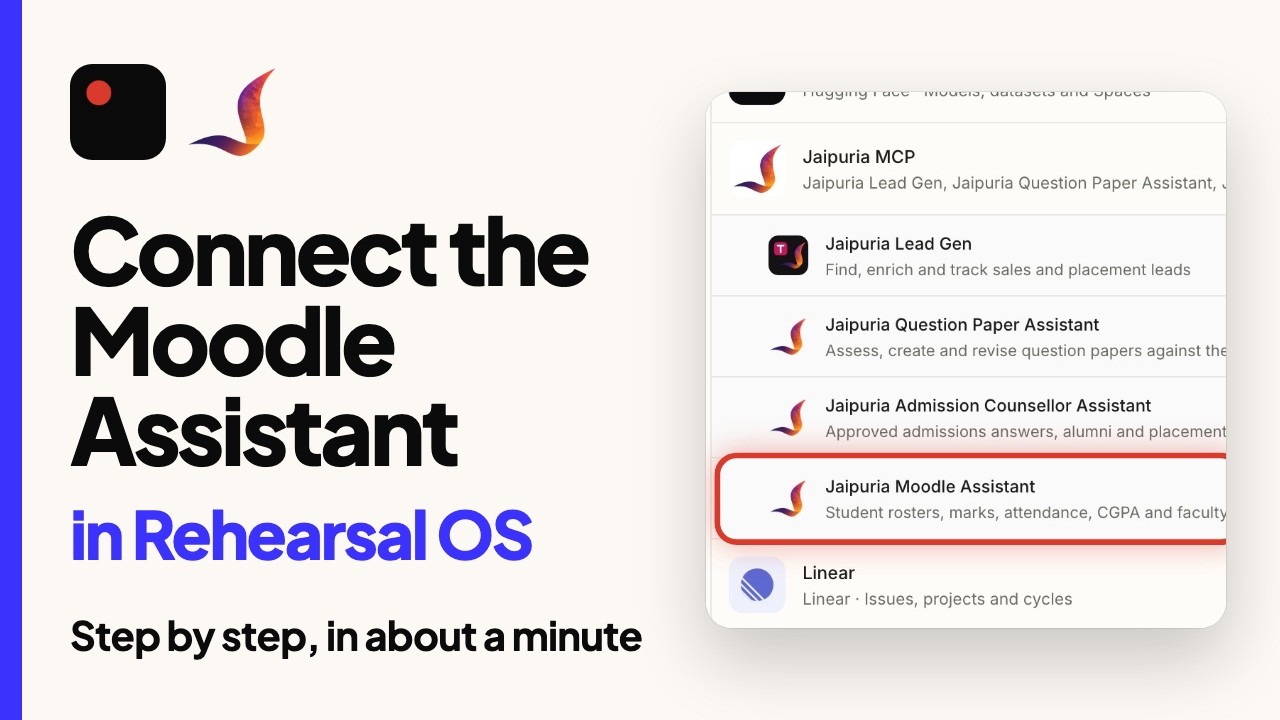
Add a new connection
On the home page, click the plus in the box and choose Add a new connection.
Pick Jaipuria Moodle Assistant
Scroll to Jaipuria MCP and open it. You will see four assistants. Pick Jaipuria Moodle Assistant.
Connect Jaipuria MCP
Click Connect Jaipuria MCP. A new tab opens. Choose Jaipuria Moodle Assistant there as well.
Sign in with Google
Click Continue with Google and pick your Jaipuria account.
Add the connection
Back in Rehearsal OS your account is ticked. Leave it on All tools and click Add connection.
Ask your question
The orange Jaipuria Moodle Assistant tag appears in the box. Type your question in plain words and send it.
A first question to try
Show me the marks of all the subjects and attendance of one student of the Noida 26-28 batch
In Claude
In Claude you add the assistant as a custom connector, using the address at the top of this page.
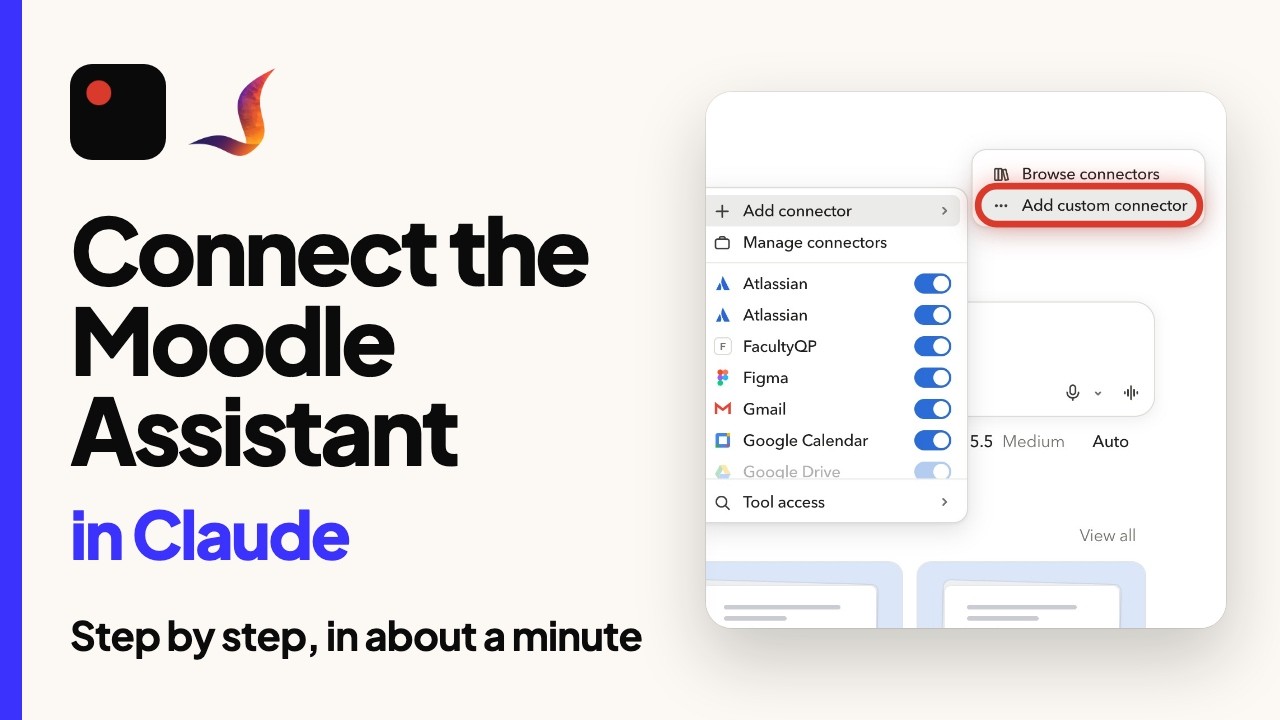
Open Add custom connector
On the home page, click the plus in the chat box and go to Connectors. Open Add connector, then choose Add custom connector.
Name it and paste the address
Type a name such as Moodle. Paste the address into MCP server URL and click Continue.
Keep the sign-in settings
Leave Authentication and OAuth client exactly as they are. Scroll down and click Add.
Sign in with Google
Click Continue with Google and pick your Jaipuria account.
Check that it connected
Claude shows Connected to Moodle at the bottom of the screen.
Ask your question
Start with Using Moodle so Claude knows where to look, then ask in plain words.
A first question to try
Using Moodle MCP show me the marks of all the subjects and attendance of one student of the 26-28 batch Noida